Getting Started with Chaquopy in an Android Project from Scratch
This guide demonstrates how to run Python functions in a brand-new Kotlin + Gradle Kotlin DSL Android app. Examples are based on the Chaquopy 17.2 official documentation as of 2026-11-26; PhoneGo itself uses Chaquopy 16.0.0, with differences noted at the end.
1. Create the Android Project
In Android Studio, create an Empty Views Activity project with Kotlin as the language and Kotlin DSL for the build scripts. The following assumes the module name is app.
First, verify that settings.gradle.kts includes mavenCentral() under pluginManagement.repositories. With Chaquopy 17.2, minSdk must be at least 24, and the Chaquopy plugin should only be applied to one module in an app. The Android Gradle Plugin (AGP) version must be compatible with your Chaquopy version—check the official version compatibility table.
// settings.gradle.kts: keep the existing template content and ensure pluginManagement includes these repositories.
pluginManagement {
    repositories {
        google()
        mavenCentral()
        gradlePluginPortal()
    }
}
2. Add the Gradle Plugin
Add the Chaquopy plugin version in the root build.gradle.kts, keeping the other plugin declarations generated by Android Studio:
plugins {
    id("com.chaquo.python") version "17.2.0" apply false
}
Apply the plugin in app/build.gradle.kts and configure the target ABIs, Python version, and required packages:
plugins {
    id("com.android.application")
    id("org.jetbrains.kotlin.android")
    id("com.chaquo.python")
}

android {
    // Keep your existing namespace, compileSdk, and other settings.
    defaultConfig {
        minSdk = 24
        ndk {
            // Apple Silicon emulators typically use arm64-v8a; standard desktop emulators often use x86_64.
            abiFilters += listOf("arm64-v8a", "x86_64")
        }
    }
}

chaquopy {
    defaultConfig {
        version = "3.10"
        buildPython("python3.10")
        pip {
            install("requests") // Only add if your Python code actually requires it.
        }
    }
}
buildPython refers to Python on your build machine, not on the phone. Its major and minor version must match version, so this example requires python3.10 to be executable on your machine. If you don't need third-party packages, you can remove the entire pip block. Chaquopy packages the selected Python runtime and compatible packages into the APK, so no separate Python installation is needed on the device. Official buildPython & pip docs
3. Create the Python File
By default, Chaquopy reads from app/src/main/python/. Create:
app/
└── src/main/
    ├── java/com/example/myapp/MainActivity.kt
    └── python/
        └── hello.py
app/src/main/python/hello.py:
def greet(name: str) -> str:
    return f"Hello, {name}!"
The Python module name is hello and the function name is greet. If the file is placed at python/mypackage/hello.py, you'll need mypackage/__init__.py and load it from Kotlin as mypackage.hello.
4. Call Python from Kotlin
In your Activity or Service, initialize Python first, then load the module and call the function. This example runs the work on a background thread and updates the UI on the main thread:
import android.os.Bundle
import android.util.Log
import android.widget.TextView
import android.app.Activity
import com.chaquo.python.Python
import com.chaquo.python.android.AndroidPlatform

class MainActivity : Activity() {
    override fun onCreate(savedInstanceState: Bundle?) {
        super.onCreate(savedInstanceState)
        val label = TextView(this)
        setContentView(label)

        Thread {
            try {
                if (!Python.isStarted()) {
                    Python.start(AndroidPlatform(applicationContext))
                }
                val module = Python.getInstance().getModule("hello")
                val answer = module.callAttr("greet", "Android").toString()
                runOnUiThread { label.text = answer }
            } catch (error: Exception) {
                Log.e("ChaquopyDemo", "Python call failed", error)
                runOnUiThread { label.text = error.toString() }
            }
        }.start()
    }
}
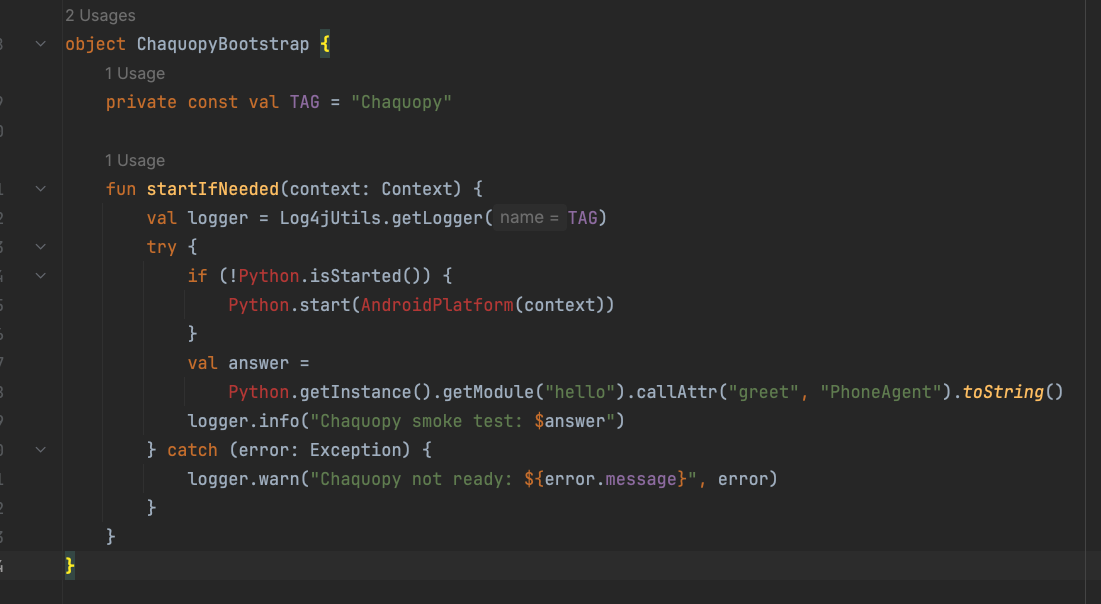
This example uses Android's built-in Activity without depending on AppCompat. Python.start only needs to be called once per process; alternatively, you can set android:name="com.chaquo.python.android.PyApplication" on <application> in AndroidManifest.xml to initialize Python on app startup. Official startup & Java/Kotlin API docs
5. Sync, Build, and Verify
- Click Sync Project with Gradle Files in Android Studio.
- Select an emulator or device matching your
abiFiltersand click Run. - The screen should display
Hello, Android!.
You can also use the Gradle Wrapper from the project root:
./gradlew :app:assembleDebug
On Windows, run gradlew.bat :app:assembleDebug. After editing Python code, simply rebuild/rerun—files placed in the default src/main/python directory do not need to be copied manually. Tasks like generateDebugPythonRequirements and mergeDebugPythonSources in the Gradle output confirm that the plugin is active in the build. Official source code & packaging docs
6. Using Another Python Source Directory
If your Python package is shared from another location in the project, Chaquopy 17.2 lets you add source directories in app/build.gradle.kts without writing copy scripts:
project/
├── app/
└── shared-python/
    └── mypackage/
        ├── __init__.py
        └── logic.py
chaquopy {
    sourceSets {
        getByName("main") {
            srcDir("../shared-python")
        }
    }
}
From Kotlin, you can then call getModule("mypackage.logic"). Note that you must add the parent directory of the package, and different source directories for the same build variant should not contain duplicate Python filenames. Official sourceSets configuration
Troubleshooting
| Symptom | What to Check |
|---|---|
No module named hello | Verify the file is at app/src/main/python/hello.py, check the module name, and rebuild. |
buildPython version mismatch or .pyc compilation warning | Your host Python's major and minor version must match chaquopy.defaultConfig.version. The official docs note that if .pyc compilation fails, it can fall back to packaging source files, at the cost of slower startup. |
| APK fails to install on emulator | The emulator's ABI must be included in abiFilters. |
| Python exceptions are not visible | Check python.stdout, python.stderr, and your app's error logs in Android Studio Logcat. Official Logcat docs |
| Python file write fails | The source directory may be read-only; use app-private storage such as os.environ["HOME"] in Python. Official file path docs |
How This Relates to PhoneGo
PhoneGo currently uses com.chaquo.python 16.0.0, AGP 8.7.3, and restricts the ABI to arm64-v8a. Its main Python source lives in phoneagent/ at the repository root; android-app/sync-python.sh copies it into app/src/main/python/ before Gradle/Chaquopy packages that directory. Running a Gradle build directly does not automatically execute this script.
This is PhoneGo's own build workflow rather than a Chaquopy requirement. A new project built from scratch can place .py files directly in src/main/python or point chaquopy.sourceSets to a shared directory per the current official docs. The comment in PhoneGo's Gradle file stating that "Chaquopy has no Kotlin DSL srcDir API" does not match the current official documentation; if modifying PhoneGo's 16.0.0 project, check compatibility for that version before deciding whether to remove the copy script.